
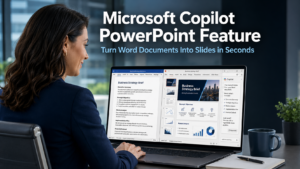
The Microsoft Copilot PowerPoint feature is a recent update that addresses one of the most time-consuming tasks in many business workflows. If your team regularly needs to turn a written document into a presentation, whether that is a client proposal, a quarterly report, a project update, or a strategy summary, this capability removes the most laborious part of that process almost entirely.
What the Microsoft Copilot PowerPoint Feature Does
Microsoft Copilot can now create PowerPoint slides directly from a Word document. Rather than copying and pasting content from a report into a presentation, reformatting everything, and spending time on layouts and visual consistency, a team member can ask Copilot to generate slides from the Word file and receive a structured, editable presentation within seconds.
The feature works at both a section level and a whole-document level. You can ask Copilot to create a slide based on a specific section of your Word document, or to work through the entire document and produce a full set of slides from it. Either way, the result is a presentation with your content already in place and formatted to a professional standard, ready to review and refine.
This is genuinely useful for anyone who has experienced the frustration of writing a clear, well-structured Word document and then having to rebuild essentially the same content from scratch in PowerPoint. That duplication of effort has always felt unnecessary. The Microsoft Copilot PowerPoint feature makes it unnecessary in practice.
What the Feature Produces and What It Does Not Yet Cover
It is worth being clear about what the current version of this feature delivers and where the human touch is still needed.
Copilot produces a solid, professional-looking starting point. The content from your Word document appears in the slides in a structured format. Text is placed appropriately, headings become slide titles, and the overall layout is clean and coherent. For most business presentations, this starting point is already substantially usable.
The current version does not handle custom brand colours, background images, or highly specific visual templates. If your business has a branded PowerPoint template with particular fonts, colour schemes, and logo placement, you will still need to apply those elements or map the generated slides into your template. This is a known limitation that Microsoft is likely to address in future updates as Copilot’s capabilities continue to develop.
The result is that the Microsoft Copilot PowerPoint feature handles the structural and content work, which is where most of the time is spent, while leaving the final visual refinement to the person using it. That division makes practical sense. The content is right. The branding can be adjusted. The alternative, building both from nothing, takes considerably longer.
How to Access the Microsoft Copilot PowerPoint Feature
The feature is available now for businesses with a Microsoft 365 subscription that includes Copilot. Access requires the latest version of the Microsoft 365 applications to be installed.
Within PowerPoint, the feature is accessed through the Home tab, where a “New Slide with Copilot” option appears. Alternatively, clicking the Copilot button and selecting “Add a slide” opens the same capability. From there, staff can reference a Word document and instruct Copilot on how much of it to convert and in what format.
For businesses that already use Microsoft 365, this is a feature worth exploring immediately. It requires no additional setup beyond having a current Copilot licence and up-to-date applications. Our cloud management page covers how businesses can ensure their Microsoft 365 environment is fully up to date and properly configured to take advantage of new features as they arrive.
The Broader Productivity Case for Microsoft Copilot
The PowerPoint feature is one addition to a growing range of Copilot capabilities built into Microsoft 365. Copilot already assists with drafting emails in Outlook, summarising meetings in Teams, generating document outlines in Word, and analysing data in Excel. The Word-to-PowerPoint conversion fits naturally into this pattern of removing the most repetitive and time-consuming steps from common business tasks.
For businesses that present regularly, the cumulative time saving is meaningful. A presentation that previously took two or three hours to build from a written document can now be structured in minutes. That time returns to your team for work that requires genuinely human skill: refining the narrative, tailoring the message to the audience, and practising the delivery.
For businesses in Crawley and across Sussex that use Microsoft 365 as their primary productivity platform, building familiarity with Copilot’s expanding capabilities is increasingly worthwhile. The tools are already included in many subscription plans. Getting value from them requires knowing they exist and taking the time to explore them. Our article on generative AI for business covers the broader context of how businesses are using AI tools like Copilot to improve productivity across their operations.
What This Means For Businesses
The Microsoft Copilot PowerPoint feature is a practical, immediately useful update for any business that builds presentations regularly. It does not require new software, additional hardware, or technical knowledge to use. It requires a Copilot licence, an up-to-date Microsoft 365 installation, and a well-written Word document to start from.
For business owners and directors, the practical action is straightforward. Check whether your Microsoft 365 subscription includes Copilot. If it does, try the feature with a document your team is already working on. If it does not, consider whether the productivity benefits across the full range of Copilot capabilities justify adding it to your subscription.
Our managed IT services include Microsoft 365 licence management and Copilot configuration for businesses across Sussex and the South East, ensuring your team has access to the capabilities available to them and the support to use them effectively.
Final Thoughts
The Microsoft Copilot PowerPoint feature solves a real problem that affects most businesses at some point. Converting a written document into a presentation is one of those tasks that takes more time than it should, creates unnecessary duplication of effort, and tends to produce inconsistent results depending on who does it and when.
Having Copilot handle the structural conversion in seconds changes that entirely. The result is not a finished presentation that requires no further work. It is a strong starting point that requires only refinement, which is exactly where human attention is best spent.
It converts content from a Microsoft Word document into PowerPoint slides automatically. You can ask Copilot to create slides from a specific section of your document or from the whole thing. The result is a structured, editable presentation with your content already in place, ready to review and refine rather than build from scratch.
Yes. The feature requires a Microsoft 365 subscription that includes Copilot. Copilot is available as an add-on to many Microsoft 365 business plans. Your IT administrator or managed IT provider can confirm whether your current subscription includes it and advise on adding it if not.
Not fully in the current version. Copilot produces a clean, professionally structured presentation but does not yet apply custom brand colours, background images, or specific font schemes automatically. You will need to apply your branding template after the slides are generated, or map the content into an existing branded template. Microsoft is likely to develop this capability further in future updates.
Open PowerPoint and ensure your Microsoft 365 applications are fully up to date. In the Home tab, look for the “New Slide with Copilot” option. Alternatively, click the Copilot button within PowerPoint and select “Add a slide”. From there you can reference a Word document and instruct Copilot on how to convert it.
Well-structured documents with clear headings, logical sections, and concise paragraphs produce the best results. Documents already organised in a way that reflects how the information would be presented, with a natural flow from one topic to the next, give Copilot the clearest structure to work from. Lengthy, dense documents with minimal formatting may require more post-generation editing to achieve the desired presentation structure.


