How to Find Your Motherboard Model Number in Windows (No Tools Needed)
You do not need to open up your computer, or know anything about circuit boards, to find out what motherboard it has. Windows already knows, and it will tell you in about ten seconds.
Whether you are adding memory, downloading a driver, checking warranty details or simply filling in a form your IT provider has sent you, the motherboard model number is one of those small pieces of information that unlocks a lot. This guide shows you the quickest way to find it, what the answer actually means, and what to do if the result looks odd.
Why would you need your motherboard model number?
The motherboard is the main board inside your PC that everything else plugs into: the processor, the memory, the storage and the ports on the back. Its model number tells you exactly what the machine can and cannot take.
The most common reasons a business owner or office manager needs it are:
- Upgrading memory (RAM). The model number tells you what type and how much memory the board supports, so you buy the right thing first time.
- Downloading drivers or firmware updates. Manufacturers publish updates by board model. Installing the wrong one can cause more problems than it fixes.
- Checking compatibility. Before adding a new SSD, graphics card or Wi-Fi card, you need to know what slots and connections the board has.
- Warranty and support. Support desks, including ours, will often ask for it to identify the exact machine you are calling about.
- Planning a replacement. Knowing the age and generation of the board helps decide whether a repair is worthwhile or whether the PC is due for retirement.
How to find your motherboard model in Windows
This works on Windows 10 and Windows 11, and it does not require administrator rights or any extra software.
-
Press the Windows key + R on your keyboard. A small box called Run will appear in the bottom-left corner of the screen.
-
Type msinfo32 and press Enter.
-
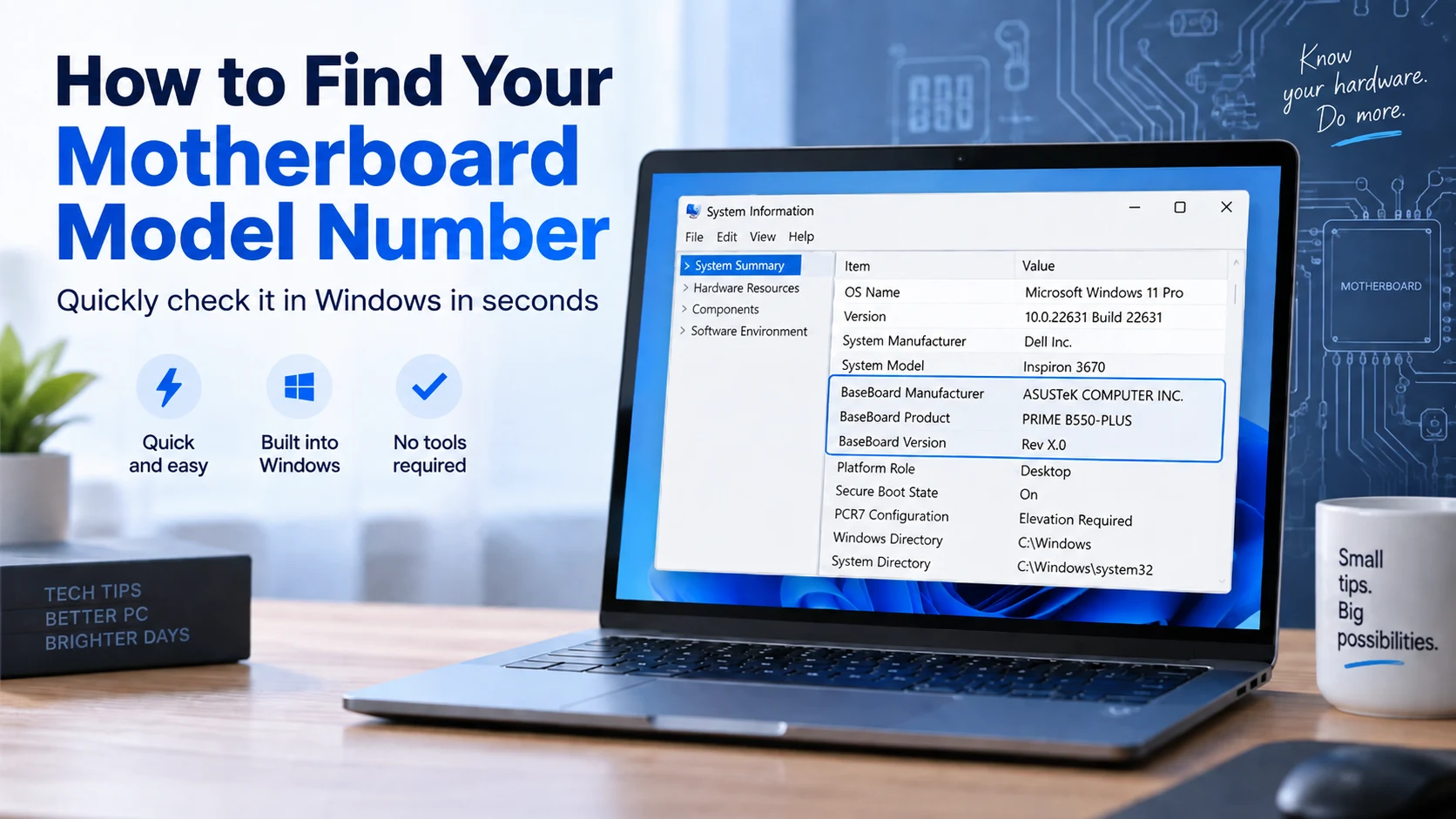
A window called System Information opens. Make sure System Summary is selected in the left-hand panel. It normally is by default.
-
In the main panel, scroll down until you see three lines close together: BaseBoard Manufacturer, BaseBoard Product and BaseBoard Version.
The BaseBoard Product line is your motherboard model number. The Manufacturer line tells you who made it, which is what you will need when searching for drivers or a manual. The Version line is less important for most purposes, but it is worth noting down if you are contacting support.
If you want to save the details, click File, then Export, and you can save the whole summary as a text file to send on.
What the results actually mean
On a PC that was built from parts, or bought from a smaller supplier, the result is usually clear. You will see a manufacturer such as ASUS, MSI, Gigabyte or ASRock, and a product name that you can type straight into Google to find the manual and support page.
On a branded business PC from Dell, HP or Lenovo, it can look less helpful. The BaseBoard Product line often shows an internal part code, such as a short string of numbers and letters, rather than a recognisable name. That is normal. For these machines, the line you actually want is usually higher up in the same window: look for System Manufacturer and System Model. Those give you the PC model, which is what the manufacturer’s support site is organised around. The BaseBoard Product line is still worth keeping, because it identifies the exact board inside that model, and the same PC model can ship with more than one over its lifetime.
If the fields show “Default string” or “To be filled by O.E.M.”
Occasionally, the Manufacturer or Product line will show a placeholder such as “Default string”, “To be filled by O.E.M.” or simply “System Product Name”. This happens when the company that assembled the PC did not fill in the board details. It is not a fault, but it does mean Windows cannot tell you the model. In that case, try the alternatives below.
Other ways to find the motherboard model
Using PowerShell
If you are comfortable typing a command, this gives you the same information in one line. Click Start, type PowerShell, open it, then paste in the following and press Enter:
Get-CimInstance Win32_BaseBoard | Select-Object Manufacturer, Product, Version, SerialNumber
This also shows the board’s serial number, which support teams sometimes ask for.
Checking the board itself
If Windows will not start, or the fields are blank, the model number is usually printed directly on the motherboard. On most boards it is in large lettering between the expansion slots or near the memory slots. We would only suggest this route if you are comfortable opening the case, and always with the PC switched off and unplugged from the mains first. For a business machine still under warranty, opening it up can affect your cover, so check first or ask your IT support to do it.
Checking the original paperwork
Your purchase invoice, the box, or the specification sheet from your supplier will normally list either the motherboard model or the full PC model. If your business keeps an asset register, this is exactly the sort of detail that belongs in it.
A quick word on what to do with the information
Once you have the model number, be careful where you take it. Searching for drivers can lead you to third-party download sites that bundle unwanted software with the file you actually wanted. Always download updates from the motherboard or PC manufacturer’s own website, and be cautious with BIOS or firmware updates in particular. They are useful when needed, but if one goes wrong it can leave a PC unable to start.
If you are looking the model up because a machine is slow, unreliable or due an upgrade, it is worth stepping back and asking whether upgrading is the right call at all. Business PCs more than five or six years old are often past the point where adding memory makes a meaningful difference, and unsupported hardware carries security risks as well as performance ones.
Need a hand with your business PCs?
Finding a model number is a five-minute job. Deciding what to do next is where most business owners would rather have someone in their corner. My Tech Team looks after the desktops, laptops and everything around them for businesses across Sussex, so questions like “can this be upgraded?” or “is it time to replace it?” get a straight answer rather than a guess. If you would like an honest look at where your equipment stands, get in touch and we will talk it through in plain English.