

Add a shared mailbox to Outlook mobile
Outlook for iOS and Android
If you use Outlook for iOS or Outlook for Android, you can add a shared mailbox you have permissions to access on Outlook Mobile.
Use a shared mailbox on a mobile device (phone or tablet)
To access a shared mailbox on a mobile device, use the following steps.
-
Sign in to your primary account in Outlook for iOS or Android.
-
Tap the Add Account button in the left navigation pane, then tap Add a Shared Mailbox.

-
If you have multiple accounts in Outlook Mobile, select the account that has permissions to access the shared mailbox.
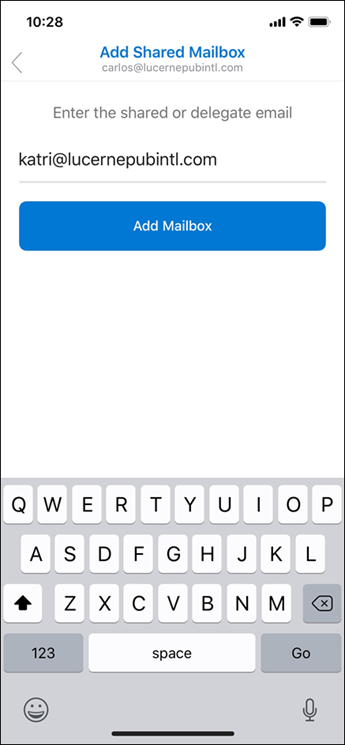
After the account setup process completes, the shared mailbox will display in your account list in Outlook for iOS or Outlook for Android.
Credits: Microsoft.com

