
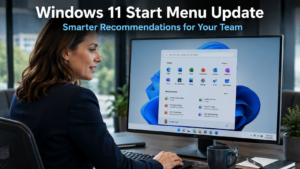
The Windows 11 Start menu update addresses something that has frustrated many business users since the operating system launched. The Recommendations section, which sits in the lower portion of the Start menu, was designed to save time by surfacing the files, apps, and sites you need most. For many teams, however, it has delivered suggestions that feel random and irrelevant. Microsoft is now fixing that, and the changes are worth understanding.
What the Windows 11 Start Menu Recommendations Feature Is Meant to Do
The idea behind Recommendations is straightforward. Windows 11 monitors your usage patterns and uses them to predict what you are likely to need next. The Start menu then surfaces those items directly, so you can reach a recently edited document or a frequently used application in one click rather than searching for it.
For a busy team, this kind of quick access has real value. Anything that reduces the number of steps between starting work and reaching the right tool saves time. Across an entire working day and a full team, those small savings accumulate meaningfully.
However, the feature has not always delivered on this promise. Many users have found the suggestions unhelpful, surfacing items that bear little relation to their actual work habits. As a result, a significant number of business users have simply ignored the Recommendations section entirely.
What the Windows 11 Start Menu Update Is Changing
Microsoft has begun rolling out improvements to how the Recommendations feature works. The updates are currently in testing, with a wider release expected to follow.
The core change is a smarter understanding of relevance. Microsoft has refined the logic that determines what the feature surfaces. Rather than producing suggestions that feel arbitrary, the updated version is designed to show items that genuinely reflect your recent and regular activity. A document you were editing the previous afternoon, an application you open at the same time every morning, a file a colleague has just shared with you. These are the kinds of suggestions the improved feature aims to deliver.
Early feedback from those testing the updates has been positive. Users report that the improved Recommendations feel noticeably more aligned with actual work patterns. For businesses that have written the feature off as useless, the update is a reason to give it another look when it arrives.
Why This Windows 11 Start Menu Update Matters for Businesses
Small productivity improvements matter more than they might initially appear. A feature that saves one minute per person per day across a ten-person team adds up to significant recovered time over the course of a month.
Furthermore, reducing friction in everyday tasks has a broader effect on how smoothly work flows. When finding the right file or application takes extra steps, focus is interrupted. When the right item is already visible and accessible, the transition from one task to the next is faster and less disruptive.
For businesses in Haywards Heath and across Sussex that are always looking for ways to help their teams work more efficiently, this kind of platform-level improvement is worth paying attention to. It requires no additional software, no configuration, and no training. The update arrives through the standard Windows update process, and the benefit is immediately available.
This also serves as a useful reminder that Windows 11 continues to develop. Microsoft regularly introduces improvements that enhance both productivity and security. Businesses that have already made the Windows 11 upgrade are well placed to benefit from these ongoing refinements as they roll out.
Other Windows 11 Productivity Features Worth Using
The Start menu update is one improvement among several in Windows 11 that many business users have not yet explored fully. Taking time to understand what the operating system offers can uncover genuine time savings without any additional cost.
Snap Layouts allow users to organise multiple application windows on a single screen efficiently. Rather than switching between maximised windows manually, you can arrange your email, document, and communication tool side by side in a structured layout. This reduces the need to constantly minimise and restore windows throughout the day.
Virtual desktops allow different projects or contexts to be separated cleanly. A team member handling multiple client accounts, for example, can keep each one in a separate virtual desktop, switching between them instantly without cluttering a single workspace.
Similarly, the improved search function in Windows 11 finds files, settings, and applications faster and more accurately than the equivalent tool in Windows 10. For teams that spend time hunting for documents, this is a straightforward improvement with an immediate practical benefit.
Our article on Windows 11 auto-launch apps covers another simple feature that helps your team start the working day more efficiently.
Keeping Windows 11 Devices Updated
Improvements like the Start menu update arrive through the standard Windows update process. This means your devices need to be running a current version of Windows 11 and have updates enabled to receive them.
For businesses managing multiple devices across a team, ensuring updates are applied consistently is important. A device running an outdated version of Windows 11 misses out on both productivity improvements and, more significantly, security patches. Both matter for a well-run business.
Many businesses find that managing updates manually across a growing number of devices becomes time-consuming and inconsistent. A managed IT service handles this automatically, ensuring every device stays current without placing the burden on individual staff members or internal administrators. Our managed IT services include ongoing device management for businesses across Sussex and the South East.
What This Means For Businesses
The Windows 11 Start menu update is a modest but genuinely useful improvement. It makes a feature that many businesses have ignored into one that could become a natural part of a productive daily routine.
For business owners and directors, the practical implication is simple. When the update reaches your team’s devices, encourage them to try the Recommendations feature again. A brief mention that it has been improved, and a short demonstration of what it now shows, is enough to prompt adoption.
More broadly, this is a useful reminder to review what Windows 11 already offers. Many businesses upgrade their operating system without exploring the productivity features available to them. A short session with your IT provider or a brief internal walkthrough can surface tools your team did not know they had.
Final Thoughts
The Windows 11 Start menu update is the kind of quiet improvement that makes everyday work slightly smoother. It does not transform how your business operates. Nevertheless, it addresses a genuine frustration and makes a useful feature more likely to be used.
For teams that have been working around an unhelpful Recommendations section, the fix is coming. Keep an eye on your Windows updates and take a fresh look at the Start menu when it arrives.
The Recommendations section in the Windows 11 Start menu suggests files, applications, and recently accessed items that Windows predicts you are likely to need. It is designed to reduce the time spent searching for things you use regularly, surfacing them directly in the Start menu for one-click access.
Microsoft is currently testing the improvements, with a wider rollout expected to follow. The update arrives through the standard Windows update process. Most business devices running Windows 11 with updates enabled should receive it without any manual action required. Your IT administrator can check the Microsoft 365 admin centre for rollout details.
In most cases, no manual configuration is required. The improvements work within the existing Recommendations feature. However, if Recommendations have been disabled on your devices, they will need to be re-enabled through the Start menu settings to take advantage of the changes.
This depends on how your devices are configured. Many businesses set updates to apply automatically, which ensures devices stay current without staff needing to take action. However, in some configurations, updates require manual approval or installation. A managed IT provider can ensure updates are applied consistently across all devices in your business.
Several features in Windows 11 are underused by business teams. Snap Layouts help organise multiple application windows efficiently on a single screen. Virtual desktops allow different projects to be separated cleanly. Auto-launch apps can open your most-used tools automatically at login. Improved search makes finding files faster. Each of these is available without any additional software or cost.


