
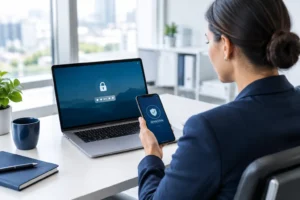
A stolen password is still one of the quickest ways into a small business. It may come from a convincing phishing email, a reused password exposed in another breach, or an account that was never properly closed when someone left. So, who needs MFA? In practical terms, almost every business that uses email, cloud software, remote access or online financial systems does.
Multi-factor authentication, usually shortened to MFA, adds a second check after a password. That might be an approval in an authenticator app, a code, a security key or a fingerprint. If a criminal gets hold of a password, they still cannot sign in without that extra proof.
For a small business, MFA is not about adding security for security’s sake. It protects the systems people rely on to send quotes, process payments, manage customers, access files and keep work moving. The right approach should improve protection without making the working day unnecessarily difficult.
Who needs MFA in a business?
The short answer is everyone with access to a business account, but the priority and method should reflect the risk. A director who can approve bank payments, an office manager with access to payroll, a technician connecting remotely, and a volunteer using charity records all need MFA. So does a member of staff who only uses email, because email is often the route an attacker uses to reset passwords for other services.
MFA is particularly necessary for Microsoft 365 and Google Workspace accounts. These platforms commonly hold email, calendars, contacts and documents, and they are often connected to other applications. A compromised mailbox can give a criminal enough information to impersonate a colleague, send fraudulent invoices or persuade suppliers to change bank details.
It also belongs on remote access tools, cloud storage, accounting platforms, customer relationship management systems, password managers and any portal holding personal, commercial or payment information. If an account can expose data, move money, change settings or provide a route into other systems, it should have MFA.
The one area that needs care is shared accounts. A generic login for a workshop terminal or reception desk may appear convenient, but it makes accountability much harder and can complicate MFA. Wherever possible, give each person their own account. For specialist equipment that genuinely requires a shared login, restrict what it can access, use a secure method to control the password, and review it regularly.
Why small businesses are a target
Some owners assume cyber criminals focus only on national firms. In reality, smaller organisations are attractive because they may have fewer controls, limited time to manage IT and valuable information that still creates leverage. An attacker does not need to steal thousands of records to cause serious disruption. Access to one mailbox can be enough to intercept invoices, misdirect a payment or lock staff out of essential files.
Automated attacks make the scale of a business less relevant. Criminals routinely test usernames and passwords obtained from previous data breaches against common services. This is known as credential stuffing. If a member of staff has reused a password, a business account may be exposed before anyone has noticed.
MFA cannot stop every attack. It will not fix weak backup arrangements, prevent someone opening a malicious attachment, or replace staff awareness training. But it does block a large proportion of account takeover attempts and gives your business a valuable layer of defence when a password fails.
Start with the accounts that could do the most damage
If MFA has not yet been rolled out, do not wait for a perfect plan. Start with the accounts where compromise would have the biggest impact. Administrator accounts come first. These are the accounts that can create users, reset passwords, change security settings or access large amounts of data. They should use strong, separate passwords and preferably phishing-resistant MFA such as a hardware security key or passkey.
Next, protect email and collaboration accounts, followed by finance, payroll, cloud storage and remote access. Then work through the other applications your organisation uses. A simple account inventory is useful here: list the system, its owner, what data it holds, whether MFA is enabled and whether former staff still have access.
For charities, this should include donor databases, grant portals and volunteer systems. For automotive businesses, consider supplier portals, diagnostic subscriptions, booking systems and any remote connection to business devices. The systems may be different, but the question is the same: what happens if this login is taken over?
Choose a method staff can use reliably
Not all MFA methods offer the same balance of security and convenience. Text message codes are better than a password alone, but they can be vulnerable to phone number fraud and interception. They are best treated as a fallback rather than the main option.
Authenticator apps are usually a good fit for most small businesses. They can generate time-limited codes or send an approval prompt to a staff member’s phone. The app does not need a mobile signal to generate codes, which helps when people are travelling or working in areas with poor reception.
Push notifications need sensible settings. Staff should never approve a sign-in request they did not initiate. Attackers sometimes send repeated prompts in the hope that someone presses approve simply to make them stop. This is known as MFA fatigue. Number matching, where the user enters a number shown on the sign-in screen, provides a stronger check than a basic approve or deny prompt.
Hardware security keys and passkeys offer stronger protection against phishing because they are tied to the legitimate sign-in site. They are especially worthwhile for directors, finance staff, IT administrators and anyone with access to sensitive data. There is a small cost and keys need to be managed carefully, but that trade-off can be very worthwhile for high-risk accounts.
Make MFA workable, not frustrating
MFA fails when it is treated as a one-off technical switch. Staff need to understand why the new prompt is appearing, what a genuine request looks like and who to contact if they change phone or lose a device. A short, plain-English briefing will prevent a great deal of confusion.
Allow time for a controlled rollout. Begin with a small group, test the sign-in process on the devices and applications they actually use, then extend it across the business. Set up more than one approved authentication method for key users where appropriate, such as an authenticator app and a backup security key. This avoids a lost phone becoming a full day without access.
Avoid using one director’s phone as the recovery route for every account. It creates a bottleneck and can leave the business exposed if that device is lost or the person is unavailable. Recovery details should be documented, protected and held by the right people.
There are cases where a person cannot use a smartphone, or a site has poor mobile coverage. MFA should still be possible. A hardware key, a managed device, or an agreed alternative can often meet the need. The aim is not to force everyone into the same method. It is to make sure no account is left protected only by a password because the rollout did not account for real working conditions.
MFA needs supporting controls
MFA works best alongside the basics. Use unique passwords stored in a business password manager, remove access promptly when staff leave, keep devices updated, limit administrator rights and maintain tested backups. Monitor sign-in activity so unusual locations, impossible travel patterns or repeated failed attempts are investigated rather than ignored.
Be careful with older applications that do not support modern sign-in controls. They can become the weak point in an otherwise well-protected setup. Sometimes the answer is to update or replace the application. In other cases, restricting the account’s permissions or access location can reduce the risk while a longer-term solution is planned.
A managed IT partner can help turn this into a clear policy rather than a collection of settings. My Tech Team can review which accounts and systems need protection, configure MFA around how your staff work, and support people through the change without unnecessary jargon.
MFA is most effective when it becomes an ordinary part of signing in, not a hurdle staff work around. Put it in place before a suspicious email or stolen password tests your defences, and your team can keep working with far greater confidence.


