Windows 11 App Privacy Settings: Control Camera and Mic Access

Quick question: how many programs on your work laptop are allowed to use the camera and microphone right now? If you don’t know, you’re in good company. Most people never look, and until now Windows hasn’t made it easy to find out.
That’s starting to change. Microsoft is testing new privacy controls in Windows 11 that let you decide, app by app, which desktop programs can use your camera, microphone and location. Here’s what’s changing, why it matters for a business, and what you can check today.
The problem with the current settings
Windows 11 already has privacy settings for the camera, microphone and location. You’ll find them under Settings > Privacy & security. For apps installed from the Microsoft Store, you get a separate on/off switch for each one.
Traditional desktop programs are different. These are the programs most businesses actually use: the ones installed from a website or a setup file, such as web browsers, accounts packages, video calling software and many older business tools. For these, Windows has offered one shared switch, “Let desktop apps access your camera” (and the same for the microphone). It’s all or nothing. You can’t allow Teams and Zoom to use the microphone while blocking a free PDF tool someone downloaded two years ago.
That shared switch has been there since Windows 10. In practice, most people leave it on, because turning it off breaks their video calls.
What Microsoft is changing
In August 2026, Microsoft started testing an update with Windows Insiders (people who try early versions of Windows) that gives each desktop program its own entry in the camera, microphone and location settings. So instead of one shared switch, you’d see Edge, Chrome, Teams and your other desktop apps listed individually, each with its own on/off switch.
Testers have also seen a pop-up appear the first time a desktop program tries to use the camera or microphone, asking whether you want to allow it. If you use a smartphone, this will feel familiar: your phone asks before an app can use the camera, and Windows is moving the same way.
This is part of a bigger plan. In February 2026, Microsoft announced what it calls “User Transparency and Consent”, promising that Windows will ask before apps use sensitive things like your files, camera and microphone, show you which apps have access, and let you take that access away later.
A word of caution: these changes are still in testing, and Microsoft hasn’t given a date for when they’ll reach everyday business computers. Features in test versions can change, or even be dropped, before release. But the direction is clear, and it’s a good one.
Why this matters for your business
It’s easy to think of camera and microphone settings as a personal privacy thing. For a business, it’s a security issue too.
- Fewer surprises. If a program you barely use suddenly asks for the microphone, that’s worth a question. A pop-up puts that decision in front of you at the right moment.
- Less access for unwanted software. Free tools, browser add-ons and fake apps are a common way for criminals to get onto business computers. Our article on fake apps containing malware explains how. Limiting what each program can reach reduces the damage one bad download can do.
- Client confidentiality. If you handle sensitive conversations, such as in a care home, a charity or a professional office, you want to know exactly which software could be listening.
- Location. Some programs ask for your precise location when they have no real need for it. Turning it off for those apps is simple good practice.
What you can check today
You don’t need to wait for the update to tidy things up. On a Windows 11 computer:
- Open Settings, then Privacy & security.
- Scroll down to App permissions and click Camera.
- Look at the list of Store apps that have access and switch off any you don’t use.
- Scroll to the bottom to see which desktop apps have used the camera recently. If you see something you don’t recognise, ask your IT support about it.
- Repeat for Microphone and Location.
While you’re there, it’s a good moment to uninstall software nobody uses any more. Every unused program is one more thing that needs updates and could be a way in.
If you manage several computers, don’t do this by hand on each one. In Microsoft 365 Business Premium, your IT team can manage privacy settings centrally with Intune (Microsoft’s device management tool), so every laptop follows the same rules and new starters get them automatically.
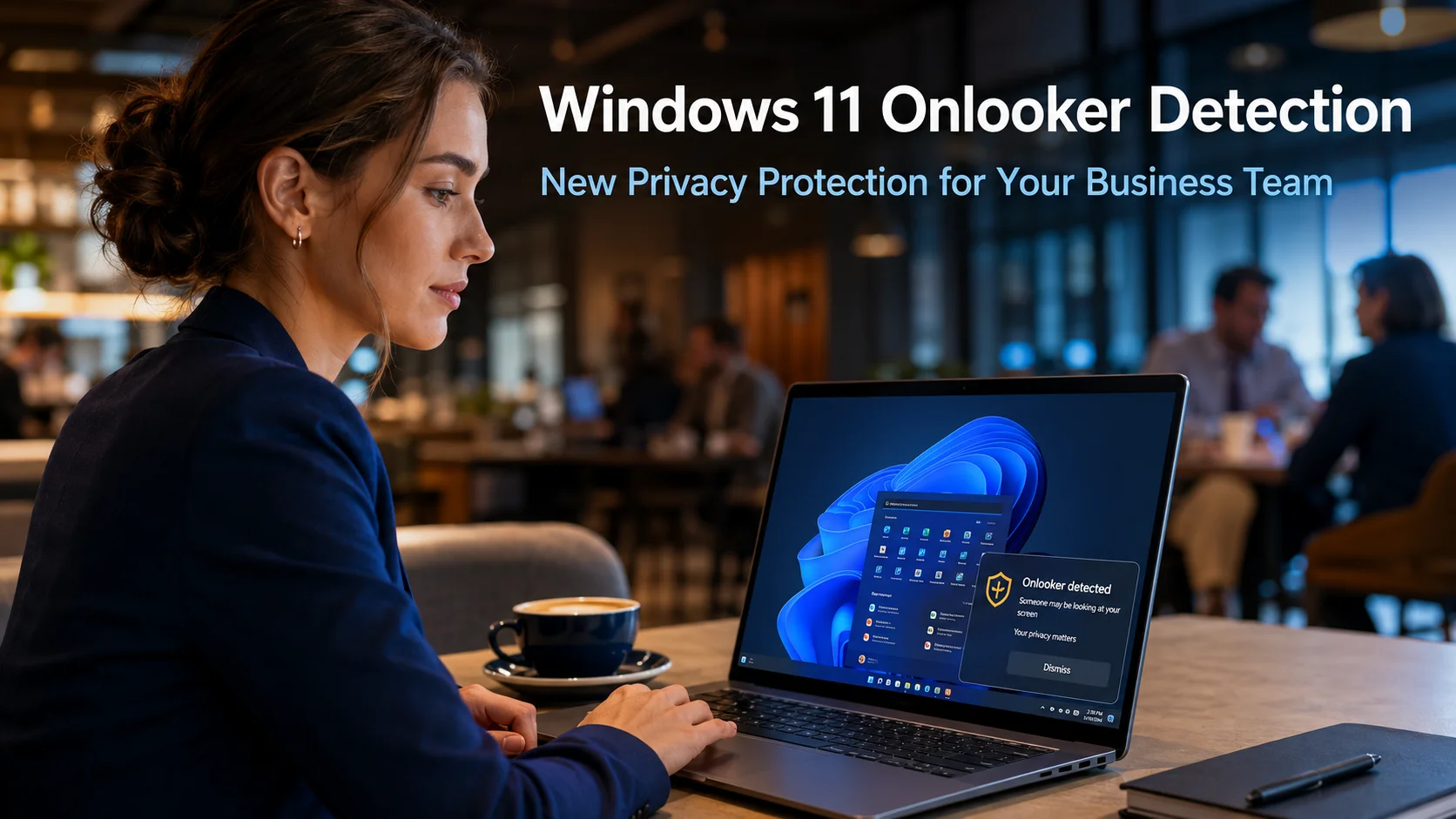
Windows 11 is adding other privacy features too, such as Onlooker Detection, which can warn you when someone is looking over your shoulder.
What we’re doing for our clients
For the businesses and charities we look after across Sussex, keeping Windows 11 computers updated and sensibly set up is part of our fixed monthly service. We’ll keep an eye on these new privacy controls as they roll out, and when they arrive we’ll help clients decide which programs genuinely need the camera, microphone or location, and set it up across every device.
It’s also a good reminder of why staying on a supported, up-to-date version of Windows matters. Improvements like this only reach computers that are getting updates. Our article on patch management for small businesses explains how to keep on top of it without the hassle.
Need a hand?
If you’d like to know which software can access what across your business computers, or you want your Windows 11 devices managed properly from one place, we can help. Find out more about our IT management service.
Book a free 30-minute call or IT audit and we’ll give you a clear picture of how your computers are set up.