How to backup my business’s data
· Updated
Data & Security · Small Business Basics
A plain-English guide for business owners who’d rather focus on their customers than their computers.
Picture this: you arrive at work on Monday morning, open your laptop, and everything is gone. Client records, invoices, five years of emails, vanished. It sounds dramatic, but it happens to small businesses every single day, usually from something as ordinary as a spilled coffee or a ransomware attack.
The good news? Protecting yourself doesn’t require a degree in computer science or a big IT budget. A simple backup routine, one you set up once and mostly forget, can save your business if the worst ever happens.
Let’s walk through exactly what you need to know.
First, What Is a “Backup,” Really?
A backup is simply an extra copy of your files stored somewhere safe. If your original files are lost or damaged, you use the backup copy to get everything back.
Think of it like photocopying important documents and keeping the copies in a fireproof drawer somewhere else in town. If your office burned down, you’d still have everything you need.
“The only backup you’ll regret is the one you never made.”
Where Should You Store Your Backup?
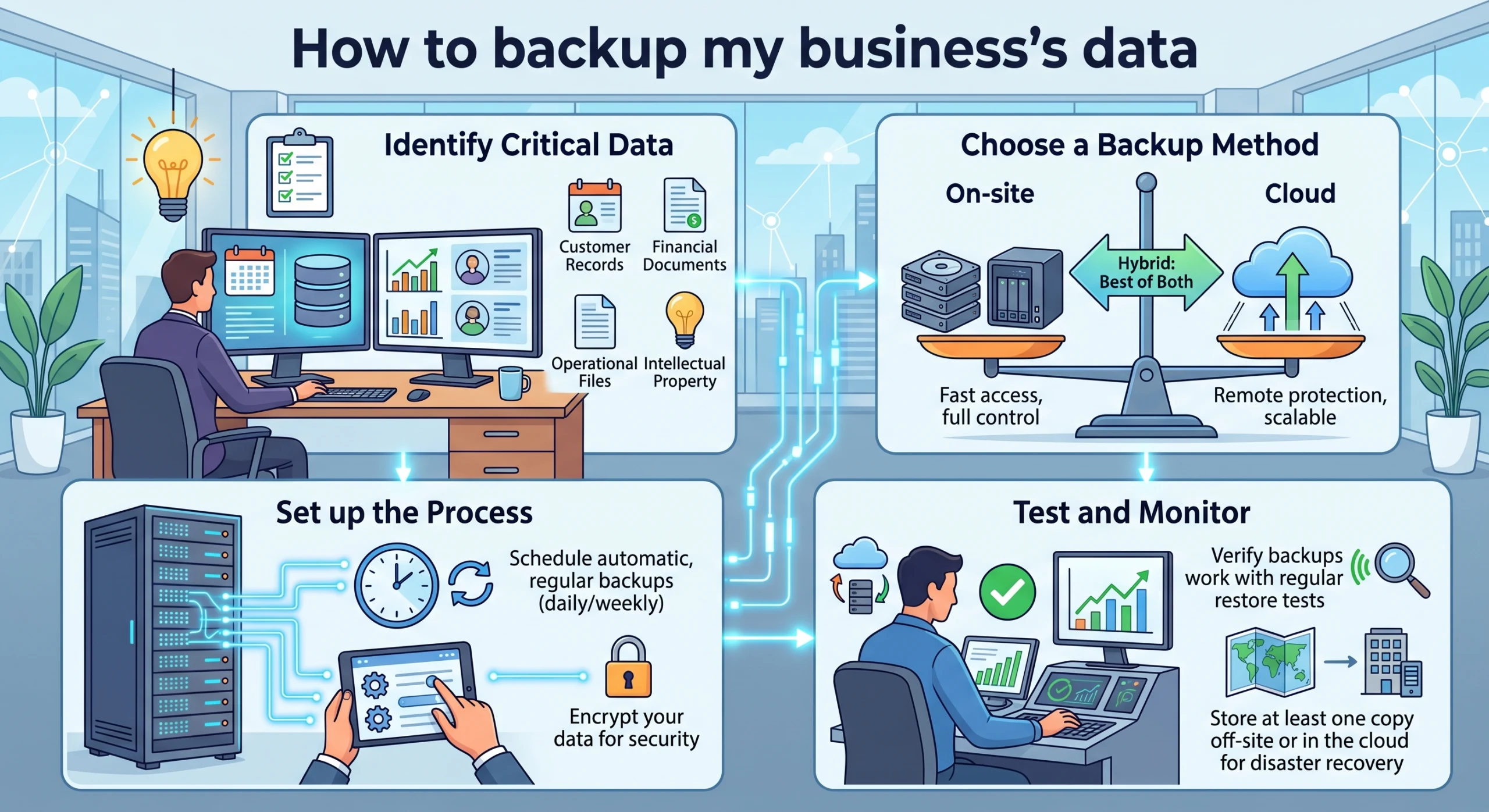
Ideally, you want two copies: one close by for quick access, and one far away in case something happens to your building. Here are your three main options:
☁️ Cloud Storage
Services like Google Drive, Dropbox, or OneDrive. Saves automatically in the background. Easy and affordable.
💾 External Hard Drive
A physical drive you plug into your computer. Good for large files. Keep it offsite when not in use.
🔒 Both (Best Option)
Cloud covers you for ransomware; a local drive means fast recovery without needing the internet.
What Files Actually Matter?
You don’t need to back up everything. Focus on what would genuinely hurt to lose:
📋 Customer and client information
Contact details, order history, contracts.
💰 Financial records
Invoices, receipts, payroll, tax documents.
📧 Emails and communications
Especially anything with legal or financial significance.
🖼️ Photos and creative assets
Product images, logos, marketing materials.
🌐 Your website files
If you manage your own site, back it up too.
If losing a file would cost you time, money, or a client relationship, back it up.
How Often Should You Back Up?
For most small businesses, daily backups are ideal. If something goes wrong on a Thursday, you want to restore your files from Wednesday night, not six months ago.
The great thing about cloud services is that many of them back up automatically whenever you save a file. You don’t have to remember to do anything once it’s set up.
For external drives, a weekly backup is a good minimum. Put a recurring reminder in your phone, “plug in backup drive”, and it becomes as routine as taking out the bins.
One Thing to Watch Out For
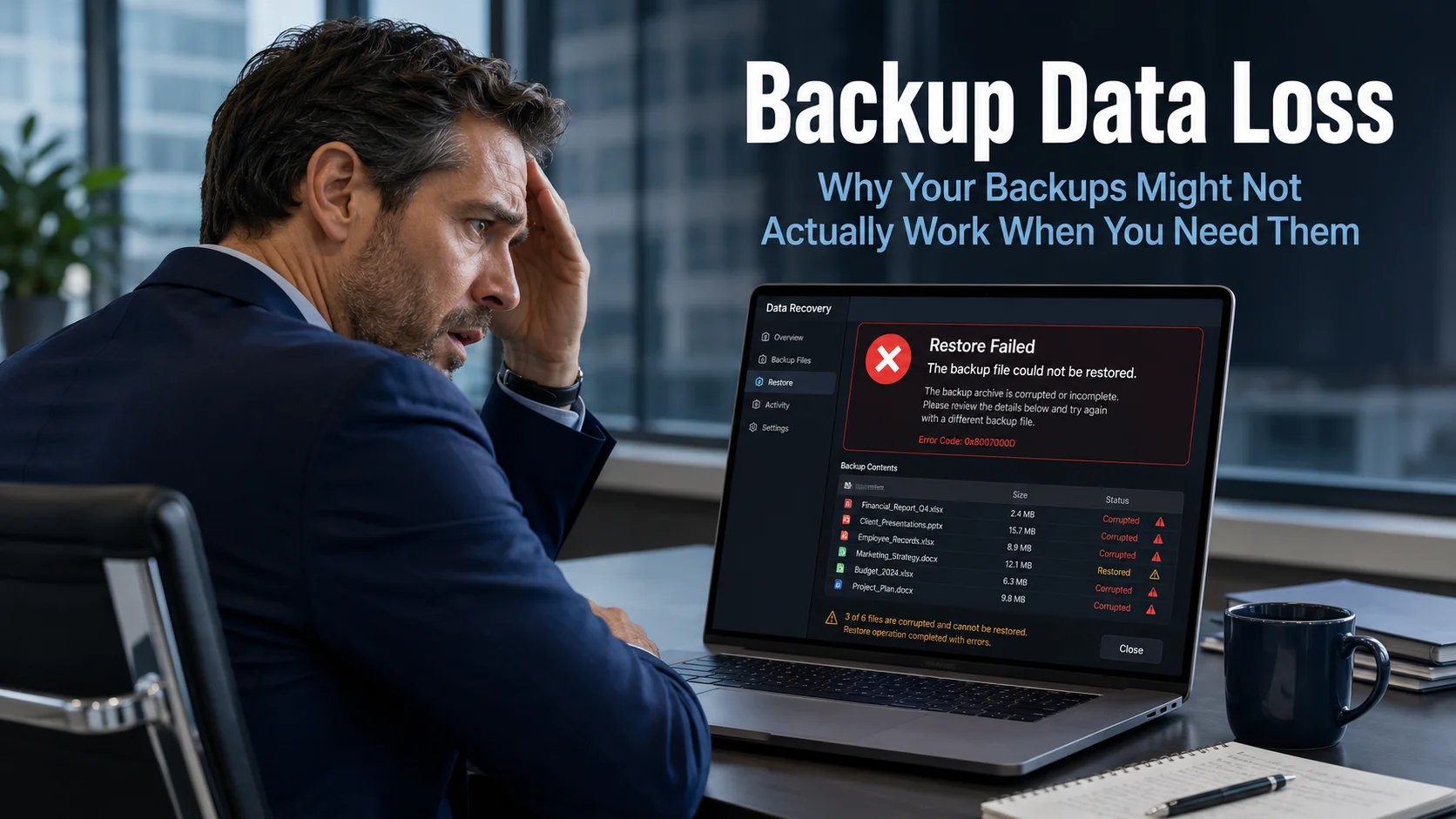
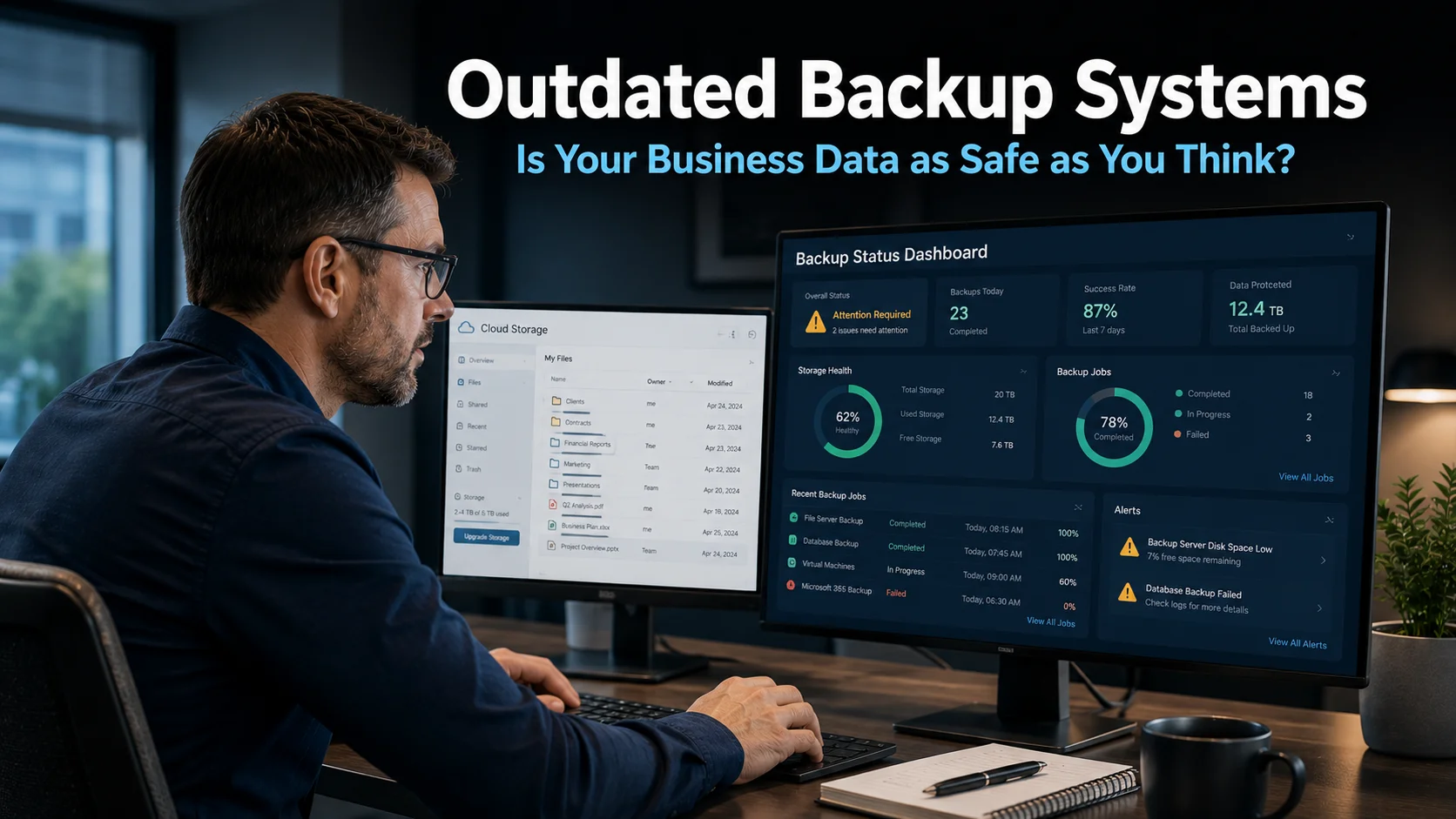
Having a backup is only useful if it actually works. Every few months, do a quick test: open a backed-up file and make sure it looks right. A surprising number of people discover their backup was quietly failing, right when they needed it most.
Also, be aware of ransomware, a type of virus that locks your files and demands payment to get them back. If your backup drive is plugged in when this happens, it can get infected too. Keeping a copy in the cloud, or on a drive that lives unplugged most of the time, protects you from this.
✅ Your Action for Today
Do This in the Next 30 Minutes
-
Pick one cloud service
Google Drive, Dropbox, or OneDrive all have free plans. Sign up if you haven’t already. -
Create a folder called “Business Essentials”
Drag your most important files into it: client list, recent invoices, key contracts. -
Turn on automatic sync
Most apps prompt you to do this during setup. Enable it. -
Make a note
Buy an external hard drive this week. They cost around £50 to £80 and are worth every penny.
That’s it. You’re already ahead of most small businesses. ✓
Not Sure Where to Start?
Sometimes it’s easier to hand this off to someone who does it every day. A good IT support professional can get your business fully protected in an afternoon and make sure your backup actually works.
Talk to an IT Specialist →
No jargon. No pressure. Just a friendly conversation about keeping your business safe.