How to Add a Second Email Account to the Outlook App on Your Phone
Lots of business owners we work with have more than one email address: their own work account, a second company they run, a personal inbox, or the mailbox for a charity they help out with. The good news is that you don’t need a second phone or a second app. The Outlook app on iPhone and Android can hold several accounts side by side, and you can switch between them with one tap.
This guide walks you through adding another account, switching between them, choosing which ones can send you alerts, and removing an account when you no longer need it.
Before you start
- Have the email address and password to hand for the account you want to add.
- Keep your phone nearby for two-step sign-in. If the account uses it (and every work account should), you’ll be asked to approve the sign-in, for example in the Microsoft Authenticator app or with a code sent by text.
- Check whether it’s a shared mailbox. If you’re trying to add a team inbox such as info@ or accounts@ that you already have access to, that is set up slightly differently. Follow our guide to adding a shared mailbox to Outlook mobile instead.
How to add another email account
The buttons are almost the same on iPhone and Android.
- Open the Outlook app and make sure you’re signed in to your first account.
- Tap your account picture or initials in the top left corner to open the menu.
- Tap the plus sign (on some versions, go to Settings, then Account, then Add Account).
- Choose to add an email account. On Android you’ll also see an option to add a Google account if the address is a Gmail one.
- Type the email address and tap continue.
- Enter the password and complete the two-step sign-in prompt if one appears.
- Wait a moment while Outlook downloads your recent emails and calendar.
That’s it. The new account now appears as a second icon in the menu on the left.
How to switch between accounts
Open the menu by tapping your account picture in the top left, then tap the account icon you want. Outlook shows that account’s inbox. To get to another folder in that account, such as Sent Items, press and hold the account icon.
Tip: when you write a new email or reply, check which address it’s being sent from before you press send. It’s easy to send a business email from your personal account by mistake, and that can confuse customers or look unprofessional.
How to choose which accounts can send you alerts
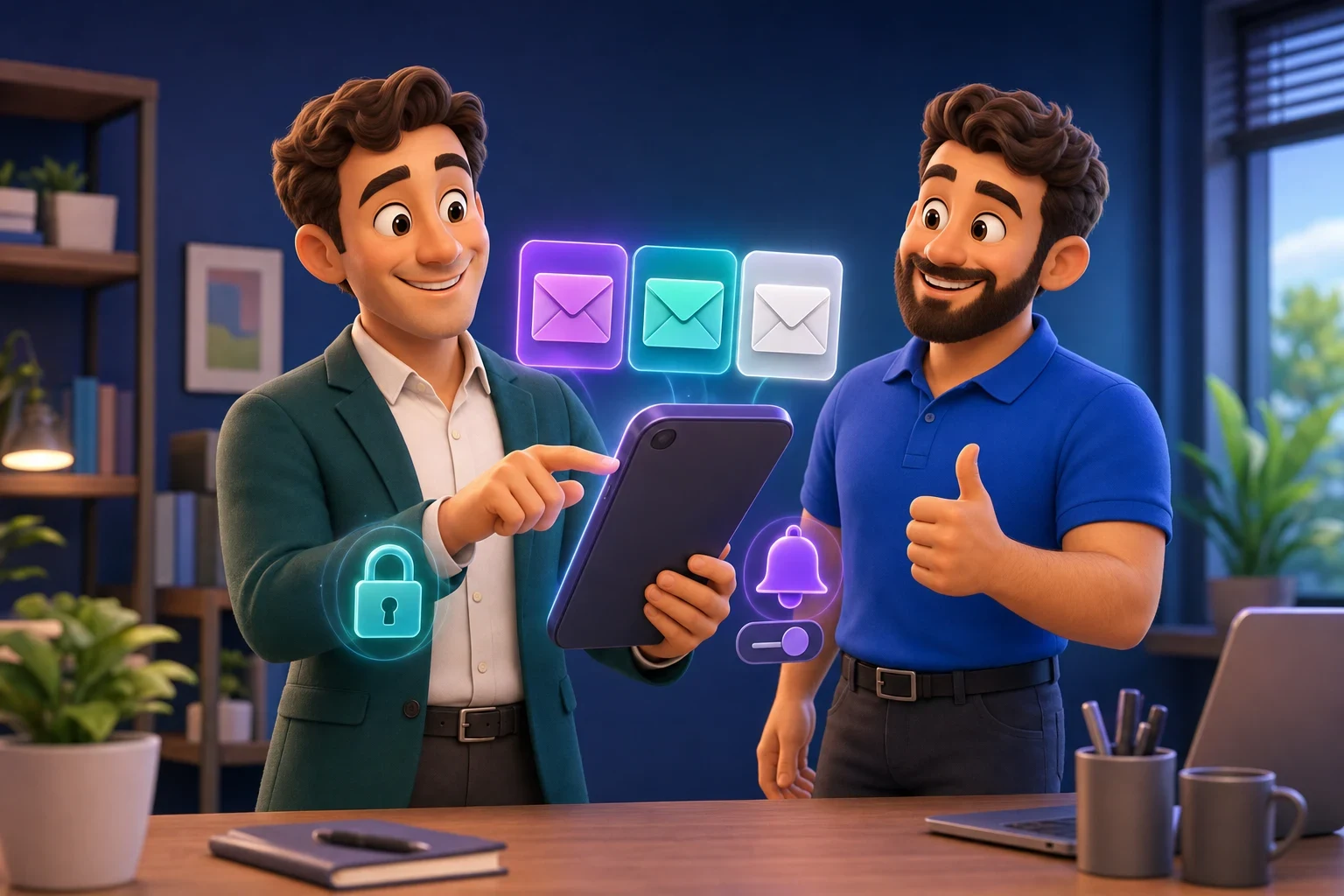
Having work email buzz your phone all evening isn’t good for anyone. You can set notifications separately for each account:
- Open the menu and tap the Settings cog at the bottom.
- Tap Notifications, then Mail.
- For each account, choose All (every new email), Focused (only emails Outlook thinks are important) or None.
A sensible setup for many owners is “All” for your main work account during the day, “Focused” for a second business, and “None” for newsletters or a personal inbox you only check now and then.
If you get no alerts at all, check your phone’s own settings too. On an iPhone, go to the phone’s Settings, find Outlook and make sure notifications are allowed.
How to remove an account
When you leave a role, close a company or simply stop using an address, take it off your phone:
- Open Outlook’s Settings.
- Under Accounts, tap the account you want to remove.
- Tap Delete Account.
- Choose Delete from this device (just this phone) or Delete from all devices.
This removes the account from the app only. It does not delete the mailbox or any of its emails.
If your company manages your phone
If your business uses Microsoft’s device management (Intune), adding your work account may ask you to install the Company Portal app, register the phone or set a PIN for Outlook. On some Android phones you’ll be asked to create a separate “work profile” and add the work account to the copy of Outlook inside it. That’s normal: it keeps company email separate from your personal apps and lets the business wipe work data, and only work data, if the phone is lost or someone leaves.
If you’re the one running the business and none of this is set up, it’s worth asking yourself what happens to company email on a lost phone or when a member of staff leaves. Our new starters and leavers checklist covers the basics.
Keep every account safe
- Turn on two-step sign-in for every account you add, not just your work one. Our guide to who needs two-step sign-in explains why.
- Lock your phone with a PIN, fingerprint or face recognition. With several inboxes on it, your phone is now a key to a lot of information.
- Remove old accounts you no longer use, so there’s nothing forgotten for someone else to get into.
Need a hand?
Setting up phones for new starters, managing work email on staff devices and keeping it all secure is part of what we do every day for businesses and charities across Sussex. If you’d like a second pair of eyes on how your team’s email and phones are set up, book a free IT audit or a quick call and we’ll show you where you stand.