Fake Meeting Invites: The Calendar Scam Slipping Past Email Filters
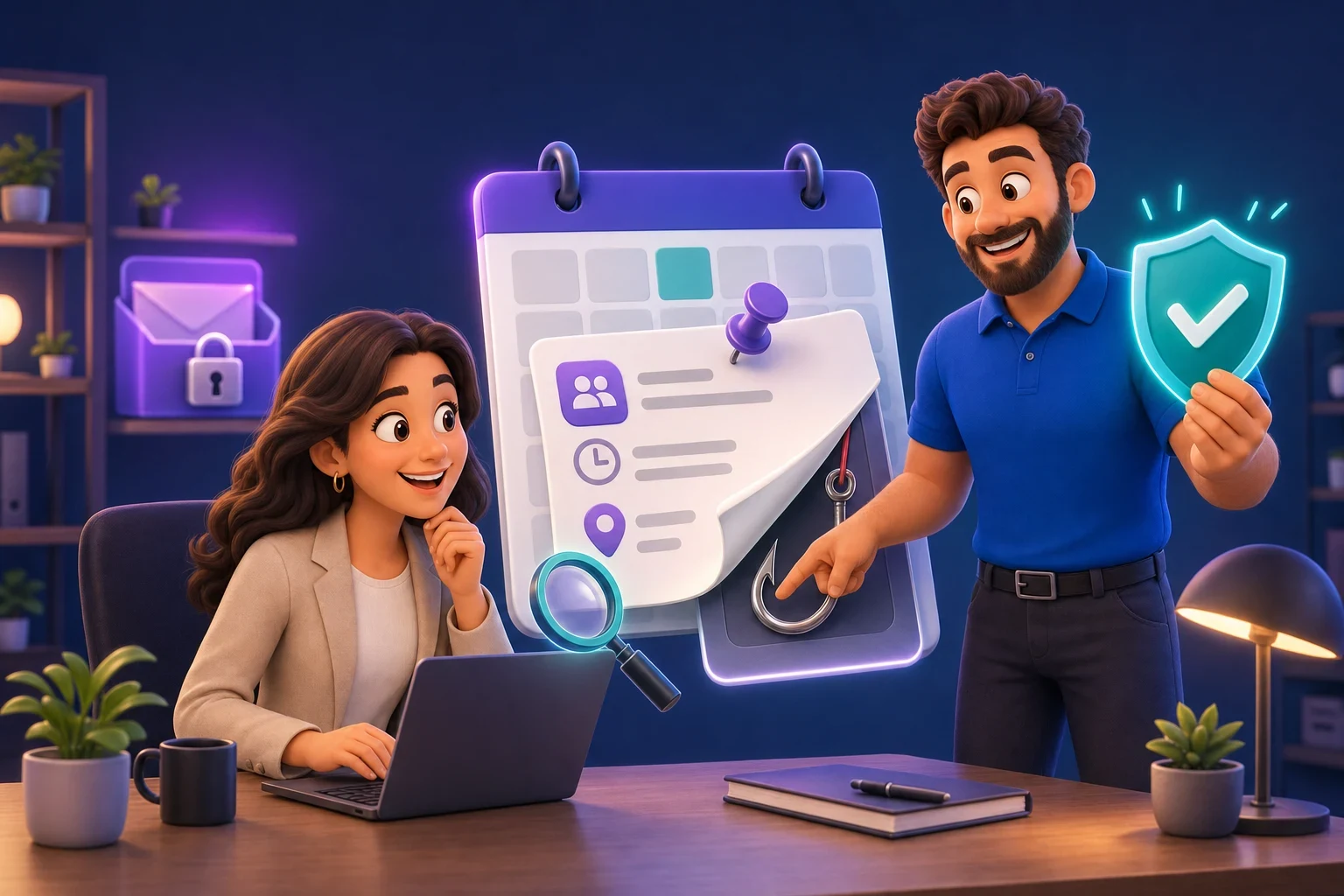
Most of us accept meeting invites without a second thought. A colleague, a client or a supplier wants half an hour, a slot appears in the calendar, and we click the link when the time comes. Criminals have noticed, and fake meeting invites have become one of the fastest-growing scams of the year.
The worrying part is that this scam can get round the email protection you already pay for. Even when the email is caught and quarantined, the meeting can still be sitting in your calendar, waiting for someone to click it.
How big is the problem?
Two email security firms reported a sharp rise this autumn, as covered by Help Net Security on 20 October 2026:
- Check Point saw malicious calendar invites rise from a few thousand a month in April to more than 118,000 in September, and more than 740,000 in just the first two weeks of October. Its research found the emails reached more than 40,000 organisations.
- Sublime Security recorded a 1,216% month-on-month increase in August 2026.
This sits on top of an already busy picture for UK firms. The UK Government’s Cyber Security Breaches Survey 2026 found that 46% of small businesses identified a cyber breach or attack in the previous year, with phishing (fake emails and messages designed to trick people) the most common type.
How the fake meeting invite scam works
The invite looks ordinary. It might be styled as a Microsoft Teams call, a “quick catch-up”, a contract review or something about a payment. There are two main versions:
- Password stealing. The invite contains a link to “join the meeting” or “view the agenda”. It leads to a fake Microsoft sign-in page. Type in your email and password and the criminals now have them.
- Malware. In one case Sublime described, a Google Calendar invite with a money-related lure led to a download. People who clicked past the browser’s warnings installed a genuine remote control tool, ScreenConnect, set up so the criminals could take over the computer.
No flaw in Microsoft 365 is being exploited. The scam simply uses the way calendars normally work.
Why your email filter may not save you
When a meeting invite arrives, it lands in two places: your inbox and your calendar. Many calendar apps add the invitation as a “tentative” entry automatically, so you can see it before you have even opened the email.
That means two chances to catch you out. If your email protection spots the message and moves it to quarantine, the calendar entry can still be there. Microsoft has improved this for businesses using its Defender for Office 365 protection, so that when an administrator deletes a malicious invite email, the calendar entry goes too. But Microsoft notes that events added from calendar files (.ics attachments) are not covered, and an entry can come back if the criminal sends the invite again.
There is also a human reason it works. When we see a meeting we don’t recognise, our first thought is often “Did I forget something?” Curiosity, and a little worry about letting someone down, makes people click.
The warning signs to look for
Share these with your team. Be suspicious of any invite that:
- comes from someone you have never dealt with, especially from a free email account such as Gmail or Outlook.com rather than a company address;
- has a vague or urgent subject, such as “Payment confirmation”, “Invoice query” or “Action required”;
- asks you to sign in, download a file or open a document before the meeting;
- leads to a sign-in page when you were only expecting to join a call;
- links to an unfamiliar website rather than a normal Teams or Zoom address;
- appears in your calendar at an odd time, or you have no memory of arranging it.
A real meeting link rarely asks for your password again if you are already signed in to Teams. If a “meeting” suddenly wants your Microsoft password, stop.
Five steps to protect your business
1. Check before you click
If an invite is unexpected, contact the person it claims to be from using a phone number or email address you already have, not the details in the invite. It takes a minute and stops the scam in its tracks.
2. Turn on two-step sign-in everywhere
Two-step sign-in (sometimes called MFA) means a stolen password alone isn’t enough: the criminal also needs a code or approval from your phone. It won’t stop every attack, but it makes a stolen password far less useful. Our guide Who needs MFA? explains where it matters most.
3. Think about automatic calendar entries
In classic Outlook for Windows, invites are added to your calendar as tentative by default. You can change this under File > Options > Mail > Tracking by clearing “Automatically process meeting requests and responses to meeting requests and polls”. The trade-off is that you will handle meeting replies yourself, so it suits people who get lots of unwanted invites rather than everyone. Your IT provider can also review how external invitations are handled across the whole business.
4. Make sure your protection covers the calendar
Ask whether your email security only checks the inbox, or also deals with the calendar. When a scam email is found, the matching calendar entry should be removed too, and links should be checked when someone clicks them, not just when the email arrives.
5. Make it easy to report
The sooner someone says “I clicked something odd”, the less damage is done. Give your team one simple way to report, and thank them when they do. Suspicious emails can also be forwarded to the National Cyber Security Centre at report@phishing.gov.uk.
What to do if someone has already clicked
Don’t panic, and don’t blame them. Act quickly:
- Change the password for that account straight away, and for any other account that uses the same password.
- Sign the account out of all devices and check two-step sign-in is switched on.
- Look for anything unusual, such as new email forwarding rules, unfamiliar sign-ins or apps given access to the account.
- If anything was downloaded, disconnect the computer from the network and get it checked.
- Delete the fake meeting from the calendar so nobody else clicks it.
Our article on how to prepare a phishing response plan covers this in more detail. If you are worried an account has already been taken over, our Have I been hacked? page explains the signs.
The bigger picture
This scam is a good example of how criminals keep moving to wherever people let their guard down. We have learned to be wary of strange emails, so they have moved into the calendar, which most of us still trust. Similar tricks use genuine Microsoft pages to catch people out, as we explained in Real login page phishing.
The answer isn’t to fear every invite. It’s a mix of good habits, sensible settings and protection that looks at the whole of Microsoft 365, not just the inbox.
Need a hand?
At My Tech Team we look after around 70 businesses and charities across Sussex, and checking how email and calendar protection is set up is part of our free IT audit. If you’d like us to take a look, or just want to talk it through, book a free 30-minute call. You can also read more about our cyber security services.